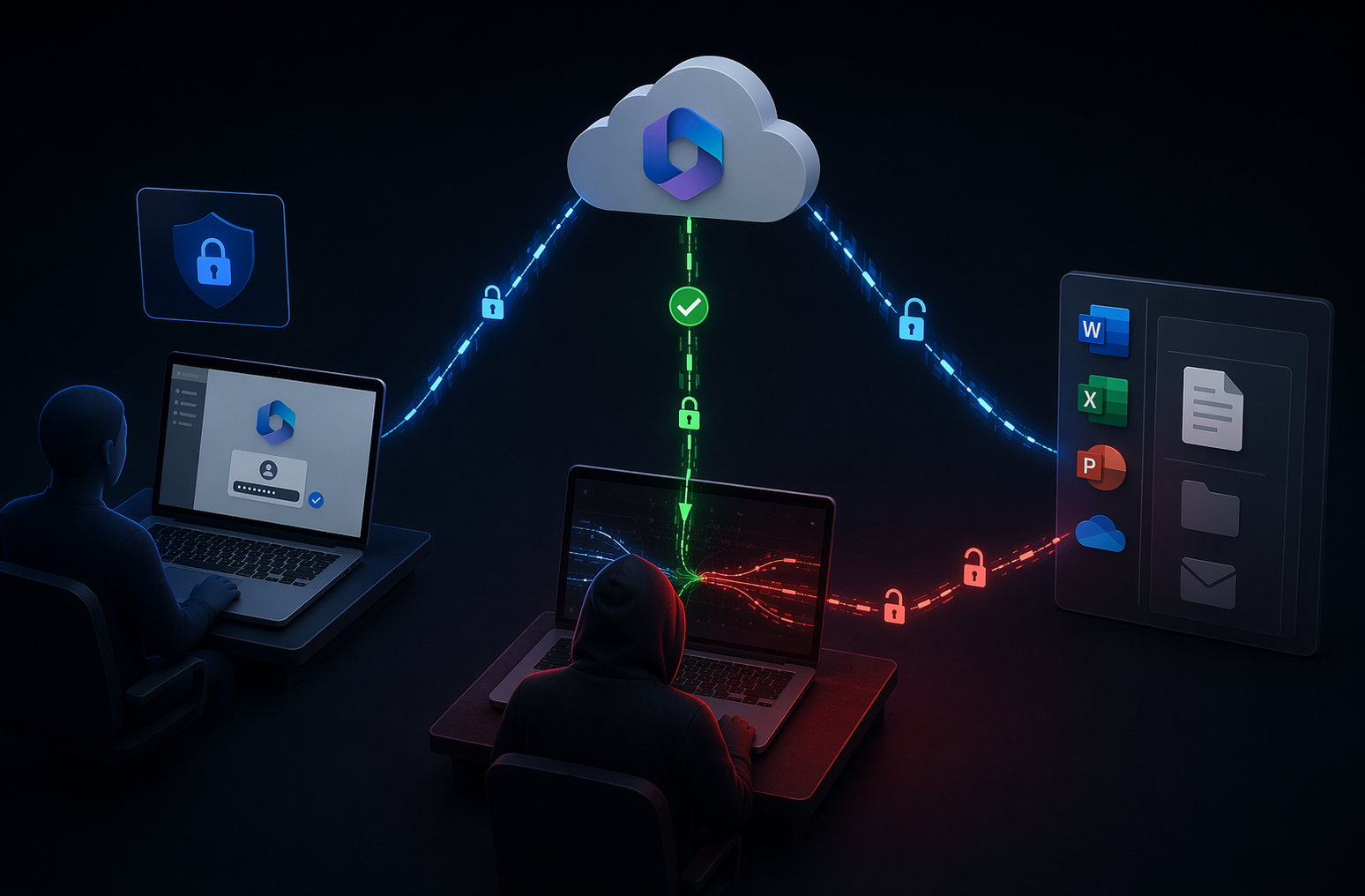
Most small organizations never intentionally decide to allow personal devices at work. It just happens. Someone adds their work email to their phone. Someone else saves an HR file to a home laptop. A third person signs in from a computer that the whole family uses. By the time anyone asks about it, your business data is already spread all around on devices that nobody manages.
A Bring Your Own Device (BYOD) policy for your small business fixes that problem. It turns a bunch of small, unplanned choices into one clear decision. The short version looks like this. Allow personal devices only for approved work. Allow them only through approved apps. And allow them only when the device meets your security rules. Admin work, sensitive records, and jobs that store a lot of data locally should stay on company-owned devices.
What BYOD actually covers
BYOD stands for bring your own device. It means an employee uses a personal phone, tablet, or computer for work. In real life, that looks like adding work email to a phone. Signing into Microsoft 365 or Google Workspace. Joining a meeting. Opening customer files. Using a business chat app. Logging into your accounting, CRM, or project software. Saving a document to a home computer. Some of that data stays in the cloud. Some of it lands on the device as messages, attachments, cached data, or files. That difference matters a lot. Once data is on the device, you have fewer ways to protect it.
What your BYOD policy should answer
A good policy answers the questions people will actually have, before they have to ask.
- Who and what. Say which employees and contractors may use personal devices, which device types qualify, and what work is allowed on them. Name the specific apps they must use, and state clearly whether company files can be downloaded. Say whether or not the device can be shared with other people at home.
- What the business can see and control. Employees read this part the most closely, so be honest. Spell out the security settings you require, say what your team or IT provider can actually see, and list which settings the business can change. Explain whether company data can be removed remotely. Vague wording here creates suspicion but specific wording here builds trust.
- What happens when something changes. Walk through what to do when a device is lost or stolen. Cover what has to happen before a device is repaired or sold. Explain how access and data are handled when someone leaves. Settle the money question too. Who pays for mobile data, repairs, or replacement? That is the part that turns into an argument later if you skip it.
Privacy, employment, and data protection rules vary by country and sometimes by state. Have your policy reviewed for every place you employ people. Employees should read and accept it before you add company access to their devices.
What we usually find during onboarding
We take on a lot of small businesses and nonprofits that have been doing BYOD informally. We see the same thing almost every time. There are more devices connected to their Microsoft 365 tenant than anyone on staff can name. Old phones. A former employee’s tablet. A personal laptop someone set up once and forgot about. We also notice a pattern with access. The people who have been there the longest often have both the most permissions and the most devices. Nobody ever went back and checked either one. So the first thing we do is pull a report of every device touching company data. That list is almost always longer than the client expects. It rarely means anyone did anything wrong. It is just what happens when devices get added one at a time over several years with no policy behind the decision.
What you cannot control on a personal device
On company-owned gear, your IT team sets the rules. They can also confirm those rules are working. On a personal device, the employee makes most of the calls. They pick the apps. They decide when to update. They choose who else uses the device and where files get backed up. Management software can enforce some of this. How much depends on the device, the operating system, the app, and how the device was enrolled. This gap is why a BYOD policy for your small business has to be written down instead of assumed.
Updates go missing
Your IT provider often cannot tell what a personal device is running. Is the operating system still supported? Does it have current security patches? They may not know. People skip updates for normal reasons. The phone is out of storage. An older app might break. The laptop has not been restarted in weeks. They still leave a known hole open on a device holding your data.
Business files end up in personal storage
A file downloaded from work email tends to stay where it lands. It sits in the Downloads folder, a personal documents folder, or a device backup. From there, a personal cloud backup can copy that file into an account you do not manage. Opening the file in a personal app can create yet another copy you cannot see.
Other apps can reach business information
Personal devices are full of apps the employee chose. Some of those apps can read files, contacts, browser history, or whatever was last copied to the clipboard. Most businesses have no idea which apps are on the device or what those apps can see.
Repairs expose data
A cracked phone or a dying laptop goes to whatever repair shop the employee picks. Work email, saved sessions, and downloaded files may still be reachable on that device. Your policy should name who to call before a repair. It should also say what to do when the device will not turn on.
Company data sticks around after someone leaves
Turning off an account stops future access to your cloud services. It does not remove copies already saved to personal folders, opened in unmanaged apps, or synced to personal storage. Managed work profiles and protected apps make cleanup much easier. But they can only remove what they control.
Decide which work is allowed on personal devices
Base access on the work being done and the data involved. Do not base it on who asks first. You might let staff read work email in an approved mobile app. At the same time, you might require a company computer for anything that exports your customer database. Staff who handle financial records, health data, legal files, or large amounts of customer data usually need company-owned devices.
Admin work belongs on a managed device. Full stop. Anyone who controls user accounts, security settings, backups, or core systems should not do that work from an unmanaged personal computer. Hold contractors to the same standard. Give them access only to the apps and data their job requires.
Security rules a personal device must meet
A personal device should clear a clear bar before it touches company data. Instead of a long checklist, think in three layers. The device itself. The account behind it. The apps in between. All three need to hold for a BYOD policy for small businesses to work.
Device-level protections
Start with the operating system. The device needs a version that still gets security updates. If it cannot install current updates, block it. Updates should install on their own whenever the platform allows it. Employees also need to know that restarting the device is part of the deal. A patch that downloads but never installs protects nobody.
Next, pair a lock screen with encryption. Require a PIN, password, fingerprint, or face unlock. Set the screen to lock on its own when the device sits idle. Encryption protects what is stored on the device if it is lost or stolen. There are two catches. Encryption only helps if it was turned on before the device went missing. And it is only as strong as the passcode in front of it. A four-digit PIN is not the protection most people think it is.
Rooted and jailbroken devices fail this layer completely. Rooting and jailbreaking strip out the protections built into the operating system. Those devices should not reach company data. Detection is not perfect, so treat it as one control among several, not a fix on its own.
Account and app controls
Multifactor authentication, or MFA, is the floor. Require it for work email, cloud storage, and any other system that matters. What MFA does not do is protect data that has already been downloaded. That is where app controls come in. Tell employees exactly which apps they may use for email, chat, and files. Do not leave it to preference. Where your management service allows it, block business data from being saved to personal storage or copied into unmanaged apps. This is the layer that keeps a customer list from quietly landing in someone’s personal cloud backup. On a shared home computer, add one more rule. The employee gets their own Windows or Mac account, with a password nobody else in the house knows. If work cannot be kept separate from other users, that device should not have access at all.
Knowing who to call
Employees need one clear contact for when a device is lost, stolen, sent for repair, replaced, or acting infected. The sooner that call comes in, the more time you have. You can disable access, check account activity, and pull managed data back before it turns into a real problem.
Keeping work data separate with managed apps and work profiles
Device and app management tools keep work data apart from personal data. They are what make a BYOD policies real instead of theoretical.
Mobile device management, or MDM, applies settings to an enrolled device. It also reports whether that device meets your rules. How much control you get depends on the platform and the enrollment method.
Mobile app management, or MAM, controls the work apps and the data inside them. Depending on the product, it can block copy and paste. It can stop saves to personal storage. It can require a separate PIN. It can wipe company data from those apps.
Microsoft Intune is a good example. It can remove company data from protected apps when a device goes missing or an employee leaves. Personal data stays put. That kind of selective removal only reaches data the service manages. It cannot delete a file copied into an unmanaged app, a personal backup, or some other storage spot it does not control. A factory reset wipes everything, personal and business alike. Microsoft warns admins about putting full device management on hardware the business does not own. Use selective removal where you can. Then tell employees in plain language what your tools can see and do.
What to do when a personal device is lost or stolen
The employee should call you or your IT provider right away. From there, cut off access and revoke active sign-in sessions. Remove company data from managed apps. Take the device off your approved list. Review account activity for strange sign-ins. Reset any credentials that may have been exposed. Then write down which company files may have been on the device.
One thing to keep in mind. Remote lock and wipe commands only run after the device reconnects to your management service. A device that stays off or offline may never get the command. That is exactly why encryption and account controls have to be in place ahead of time.
What to do when an employee leaves
Disable the account and revoke active sessions at the agreed time. Then remove company data from managed apps or work profiles. Check whether business files were downloaded to the device. Confirm how those copies will be returned or deleted. Do not assume they are already gone. Take the device off your approved-device records. Where your tools allow it, remove business apps, certificates, email profiles, and VPN settings.
When to issue a company-owned device instead
Sometimes BYOD is just the wrong answer. Provide a company device when the employee handles sensitive data. Do the same when the role needs admin access. Do it when large amounts of data must be stored on the device. Do it when the device is shared with other people. Do it when the operating system is no longer supported.
Provide one if encryption cannot be turned on. Do it if you cannot separate or remove your data. Do it if the employee will not accept the required controls. Do it if the device has been rooted or jailbroken. Company devices are easier for your IT provider to support, too. The settings and installed software are known instead of a surprise.
Yes, and for some roles that is a fair middle ground. Just know that data still lingers in the browser cache, the Downloads folder, saved passwords, screenshots, and active sessions. Access policies can limit which devices and browsers are allowed. Sensitive work will usually still need a managed device.
Not on its own. MFA protects the sign-in, which is the most common attack you will face. It does nothing for a file already sitting in the Downloads folder of an unencrypted laptop. You still need updates, screen locks, encryption, approved apps, and a plan for lost devices.
It depends on the management method, and this question deserves a straight answer in writing. App-level management only touches work apps and the data inside them. Your personal content stays invisible to it. Full device enrollment shows device details and allows broader control. Tell employees what your IT team can see, change, lock, or remove before they enroll anything.
Some enrollment methods can trigger a full factory reset. App-only management cannot. A factory reset deletes personal photos and data along with company data. That is why selective removal is the better choice for employee-owned devices whenever it is available.
It cuts hardware costs, which is the obvious part. It also adds cost in management licensing, support time, security tools, and admin work, which is the part people miss. Whether it pays off depends on how many devices you allow, which apps they use, and what kind of work you permit.